

AWS IAM Access Analyzer aids in identifying resources in your AWS account like S3 bucket or IAM roles which are shared with an outside entity. This allows you to spot unauthorized access to your data and resources, which is a security issue. By examining the resource-based regulations in your AWS cloud environment, Access Analyzer uses logic-based reasoning to identify resources shared with outside principals.
If Access Analyzer finds a policy during the analysis of the policies that give access to an external principal outside of your zone of trust, it generates a finding. To enable you to take the necessary action, each finding provides information about the resource, the external entity that has access to it, and the permissions provided.
Access Analyzer analyzes the following resource types:
- Amazon S3 buckets
- AWS IAM Roles
- AWS Key Management Service Keys
- AWS Lambda Function and Layers
- AWS Simple Queue Service queues
- AWS Secrets Manager secrets
Steps to Create Access IAM Analyzer:
- Log in to your AWS account and open the IAM dashboard.
- Select Access Analyzer from the navigation pane on left.
- Click Create Analyzer.
- Give name and tag, select zone of trust, and click Create Analyzer.
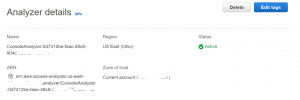
- Now, you can see the findings in the Access Analyzer panel.
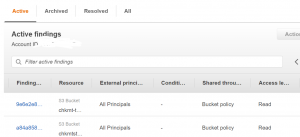
Select a finding to take further action.
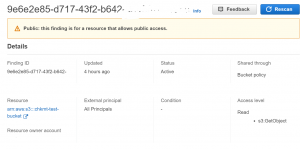
- If this finding is intended, then it can be archived, or if it is unintended you can take action on it.
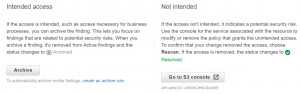
Archive Rules: New finds that fit the criteria you specify when you construct the rule are automatically archived by archive rules. Additionally, you can retrospectively add archive rules to existing findings that satisfy the archive rule requirements. You could, for instance, design a rule to automatically archive any findings for a particular AWS S3 bucket to which you frequently provide access. You may also design a rule that automatically archives any new discovery generated for access granted to a specific principle if you grant access to numerous resources to that principal. This enables you to concentrate only on current findings that might point to a security issue.
Steps to create IAM Archive Rules:
- Select Archive Rules from the navigation pane in the IAM console.
- Click Create Archive Rules.
- Enter the name if you want to change the default rule.
- Select a property under criteria in the rules section.
- Choose an operator for the property.
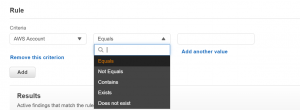
- To add another property click Add. You can also include the criterion Public access and set it to false to ensure that your rule won’t archive fresh discoveries for public access.

- Next, select Create rule to apply the rule to new findings only. Select Create and archive active findings to archive new and existing findings.
Monitoring AWS IAM Access Analyzer with Amazon EventBridge:
Step1: Create AWS SNS Topic
- Go to the SNS dashboard and click create topic.
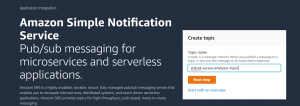
- Select Standard type.
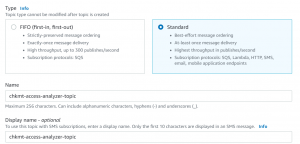
- Click Create topic.
- Next, click Create subscription.
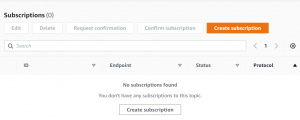
- Next, we will select the email protocol. Enter your email address and click Create Subscription.
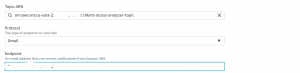
Step2: Create the EventBridge rule.
- Go to the Amazon EventBridge dashboard.
- Click Create rule.
- Select Default event bus and Rule with event pattern as rule type.
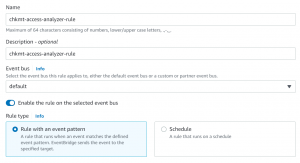
- Next, select AWS event as event source.
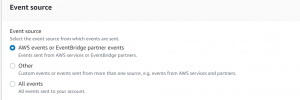
- Select Access Analyzer as AWS service and Access Analyzer Finding as event type.
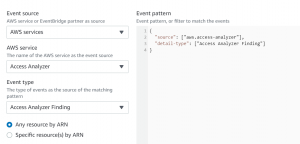
- Next, select SNS topic as target.
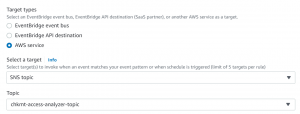
- Add tags and click Create rule.
- We will now receive an email notification whenever a finding is generated by the AWS IAM access analyzer.
Please contact our Cloud consultants if you would like to discuss anything related to AWS Cloud DevOps infrastructure.
