

Jenkins is an open-source automation tool that is used to build, test, and distribute software. Jenkins, the top open-source automation server, offers hundreds of plugins to help with creating, releasing, and automating any project. In this blog, we will integrate Jenkins with Slack.
Prerequisites:
- Jenkins must be running on a local or remote server.
- You should have a slack account with a workspace.
Slack Configuration:
- Please visit the following link: https://api.slack.com/
- Sign in to your account.
- Click on Create an app
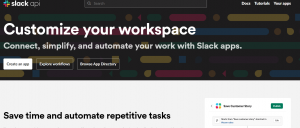
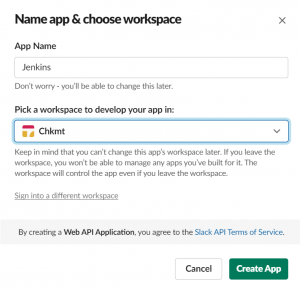
- After that click on create the app from scratch and then write the app name Jenkins and select your workspace.
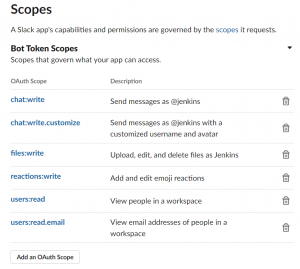
- Navigate to OAuth & Permissions.
- Add scopes in the bot token scopes section.
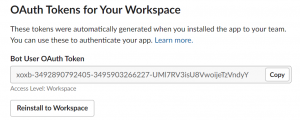
- Scroll up and click on Install to Workspace in OAuth tokens for your workspace section.
- Next, allow Jenkins to access your workspace
- A token would be generated. Copy that token to notepad.
- Now open your slack application, and you will see Jenkins in the Apps section.
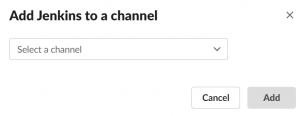
- Right-click on Jenkins, select open app details, and then add the app to a channel.
Jenkins Configuration:
- Login to your Jenkins server.
- Download Slack Notification Plugin from manage plugins.
- Navigate to Manage Credentials.
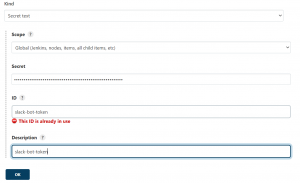
- Click on add credentials. Select Secret text in the kind field, paste your token in the secret field, give id and description and then select ok.
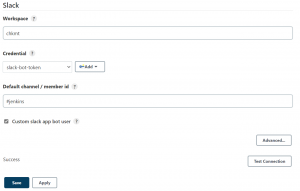
- Next, go to Configure System. You will find the Slack configuration field there. Enter your workspace name, select credentials, and enter your channel name. Mark check on Custom app bot user. Click on test connection, it should show success. Click on save.
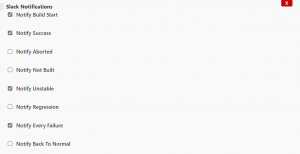
- Now go to your Jenkins project. Click on post-build actions and select Slack Notifications.
- Checkmark events for which you want notifications.
- Click Save.
- Build your project.
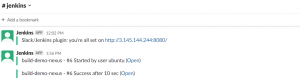
- Check your channel, you will see you have received notifications.
Please contact our technical consultants if you have anything related to infrastructure to be discussed.
