

ANSIBLE VAULT
Ansible Vault is a feature of Ansible that allows you to secure sensitive data such as passwords by storing them in an encrypted file rather than leaving them as plaintext in playbooks or roles. You may need to configure and use one or more passwords to encrypt and decrypt the content. You can view encrypted files, decrypt encrypted files, create encrypted files, and view/edit encrypted files using ansible-vault commands. All the ansible vault commands will start with ansible-vault.
How to use ansible-vault command to create an encrypted file.
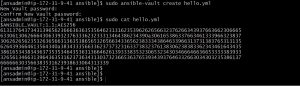
sudo ansible-vault create hello.yml
For Instance: In above command, create is an option and hello.yml is file name.
This command will create file named “hello.yml” and data written to this will be encrypted, you have to secure you file with a password and use the same to access the file, observe below snapshot when “cat” command is used to see content of “hello.yml” output is a cipher text (encrypted text)
How to use ansible-vault command to see contents of an encrypted file

if you use “cat” command or any other editor to see content of an encrypted file you will get an encrypted text.
sudo ansible-vault view hello.yml
This command will allow you to see actual data.

please consider above example to see content of encrypted file, use option “view” to see contents of an encrypted file, you have to authenticate with password to see the content of encrypted files.
How to use ansible-vault command to edit an encrypted file
you cannot use normal editor like vi/vim/nano to edit ansible vault files as the content will be in an encrypted format and user should authenticate with a password to edit an encrypted file.
sudo ansible-vault edit hello.yml
This command will open the file to edit using default editor set on your machine terminal.

How to use ansible-vault command to decrypt an encrypted file
option decrypt will allow you to decrypt an encrypted file, as you saw in the output snapshot of “view” there is no sensitive data in “hello.yml”, so if you want to decrypt and keep it as an unencrypted file use below command.
sudo ansible-vault decrypt hello.yml
as we decrypted “hello.yml”, you can see the content of the file using “cat” command

How to use ansible-vault command to encrypt a file
assume you have created an unencrypted file and some sensitive data is written to it, then you can use option encrypt with ansible-vault command to encrypt the file.
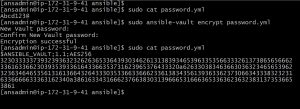
sudo ansible-vault encrypt password.yml
here “encrypt” is option and “password.yml” is file name which is being encrypted.
as you can see file “password.yml” is not encrypted and its content can be viewed with “cat” command, after encryption content shown using “cat” is a cipher text and the content of the file can only be viewed with ansible-vault “view”.
How to use ansible-vault command to give password of an encrypted file
–ask-vault-pass: if you want to use an encrypted file in a ansible playbook you should pass the password but it won’t ask for a password directly you should use this option “–ask-vault-pass” so that it will prompt for a password, follow below scenario to understand it.
Let’s take an example that you want to clone to your github private repository you need to provide username and password or personal access token.

if you want to clone the repository on slave machines using a ansible playbook you should give the credentials in link itself as shown below as you cannot enter credentials manually.
git clone https://aksshaay: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@github.com/aksshaay/vault-practice.git
here “aksshaay” is my github username and “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” is my PAT token.
In this scenario if you want to share your playbook with another user you may not like to keep your password plain/unencrypted, so you can create an encrypted file using ansible-vault to store password/PAT there and pass it as a variable from a external file in playbook, here I am creating a encrypted file named “vault-password.yml” and storing my PAT there.


Now I am creating a playbook named “clone-repo.yml” on my ansible master or controller machine to clone my private git repository in slave or controlled machines, here I will pass my PAT (personal access token) of github as variable from external file instead of giving it directly in the link.
here in below yml file iam giving “vault-password.yml”(I stored my git PAT here in last step) under vars_files and passing my PAT as a variable.
clone-repo.yml
---
- name: ansible playbook to clone a git repo
  hosts: all
  become: true
  vars_files:
   - vault-password.yml
  tasks:
  - name: clone a repo
    git:
      repo: https://aksshaay:{{ password }}@github.com/aksshaay/vault-practice.git
      dest: /opt/ansadmin/test-vault
sudo ansible-playbook -i hosts clone-repo.yml --ask-vault-pass
so here in the above command iam giving password of “vault-password.yml” file using option “–ask-vault-pass”

ansible-vault command to give password as a file
this option will be help full to pass the password using a file, in above example of “clone-repo.yml” I used a encrypted file named “vault-password.yml” to pass a variable from it and option -“-ask-vault-pass” is used to give password of “vault-password.yml” file. we can also store the password for “vault-password.yml” in a file and pass that file using option –vault-password-file.
Here iam going to store password for “vault-password.yml” in a file named “my-pass.yml” and pass this using –vault-password-file.
sudo ansible-playbook -i hosts clone-repo.yml --vault-password-file my-pass.yml
Please write to our technical DevOps Director to address DevOps Support or cloud infrastructure engineering related issues. We will be delighted to assist you.
