

The Linux “find” command helps to locate and manage files and directories based on search options like file type, name, size, permissions, created time, edited time, based on created user, etc.
We can also combine “find” with “-exec” to perform actions on the results of the find command, like changing permissions, copying the files, moving the files, deleting the files, to manage infrastructure operations.
The find command’s basic syntax
find {path} {name-of-file or dir-to-search} {action-to-take}
path: specific location or directory to search for. name-of-file: file name to search for. action-to-take: subsequent action to perform such as: copy, move, delete.
Example 1:
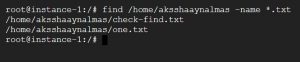
find /home/aksshaaynalmas -name *.txt
The above given find command searches for all (*) the files with a “.txt” extension in the “/home/aksshaaynalmas” location, as mentioned in the following output.
Example: 2
Syntax to find files or directory from current location using Linux find command
You can use “.” instead of mentioning the path “.” means current location. Sometimes we need to look for files or directories in the same location. We can use options “f” for files and “d” for directories with the find command. For instance, if you have a directory and a file named “Books,” you can use it for the directory.
find . -name Books -type d
for file.
find . -name Books -type f
Example 3: How to find files or directories based on their size using Linux find command
You can use the “find” command to find all files or directories that are smaller, equal, or greater than a certain size, or empty. You can use the appropriate size format depending on the type of files or directories you are searching for.
- To find files which are of certain size(below will command search for file size equal to 10Megabytes)
find . -size 10M
- To find files which are greater than certain size, here command will search for files which are greater than 2M in size.
find . -size +2M
- To find files which are lesser than certain size, here command will search for files which are lesser than 2M in size.
find ./ -size -2M
- To find the files of size within a specific range such as between 20M and 200 M.
find . -size -20M -size +200M
- To find empty files
find ./ -type f -size 0
Example 4:
How to search files or directories by timestamp or age using Linux find command
- To get a list of files between two specific dates
find . -type f -newermt 2021-08-01 ! -newermt 2022-05-13
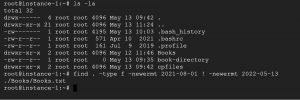
- Finding files or directories based on modification time, This command will search for files that have been modified in the last 10 hours.
find . -mtime -10 -type f
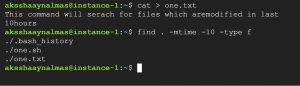
This command will search for directories which are modified within last 5 daysfind . -mtime -5 -type d
- To find the files based on date or time accessed, this allows you to find files that have been or haven’t been accessed within a specific period of time.
- To get files that are not accessed within the last 5 days.
find /home -atime +5
- To get files that are accessed exactly 5 days ago.
find /home -atime 5
- To get the files accessed within last 5 days.
find /home -atime -5
Example 4:
Lets see how we can use find command to search for the files and directories based on the users and permissions
- To get files with a specific permission
find -perm 765

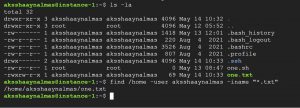
- To get files owned by a specific user
find /home -user aksshaay
- To get specific files owned by a specific user <prefind /home -user aksshaaynalmas -iname “*.txt”
Example 5:
Searching and listing files and directories along with their permissions
find -name ".txt" | ls -l

we will look at how you can act on the files that are results of find command
Using “find” command to search files and changing their permissions
find . -name "*.txt" -type f -exec chmod 755 {} \;
Lets try this command on these files

output: 
Searching and copying a files to a directory using find command
find . -name 'one.txt' -exec cp {} /copied-files \;
this command finds file named “one.txt” and copies it to the directory named copied-files
finding files and moving based on the age
find . -type f -name '*.py' -mtime -1 -exec mv {} copied-files \;

finding and deleting files and directories using “find” command and -exec.
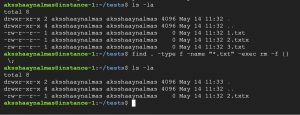
find . -type f -name "*.txt" -exec rm -f {} \;
This command will search and remove all the files with the extension “.txt”
To find and delete directories
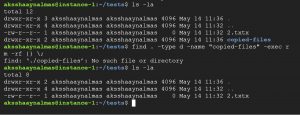
find . -type d -name "copied-files" -exec rm -rf {} \;
This command finds and removes a directory named copied-files
Example 6:
Using find command for searching and deleting files based on age.
find . -type f -name '*.txt' -mtime +1 -exec rm {} \;
This command deletes all the files with extension “*.txt” which are older than 1 day.
Using find command to find and delete directories .
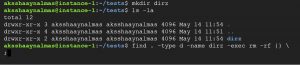
find . -type d -name dirz -exec rm -rf {} \;
This command deletes the directory named dirz
Output:

Using find command to delete empty files and directories.
find . -type f -size 0 -exec rm -f {} \;
This command removes all the empty files in present working directory

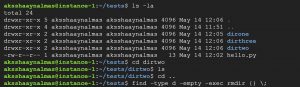
find -type d -empty -exec rmdir {} \;
This command removes empty directories.
Output:
Please connect with us get Cloud DevOps Infrastructure solutions
