

Amazon Relational Database / Amazon RDS is a managed relational database service provided by AWS, aws will take care of hardware, management part , taking backups etc. it makes it easier to setup , operate and scale relational databases in the aws cloud, Some of its important features include Dashboard, Databases, Performance Insights and Snapshots for backup and disaster recovery , lower administrative burden , scalability , performance, advanced security , cost-effectiveness, higher availability.
The different Database engines that are supported by RDS are MySQL, SQL Server, PostgreSQL, Oracle, MariaDB, Amazon Aurora, Amazon RDS Custom.
Why Choose RDS over EC2 or on-premises setup
Elastic Compute Cloud (ec2) provides scalable compute capacity in the AWS cloud , amazon ec2 eliminates your need to invest in the hardware upfront so that you can develop and deploy applications faster and for a relational database in an on-premises server you need to take full responsibility for the server, operating system and database software for this you need to have dedicated teams for each task and for a database on an amazon ec2 instance amazon manages the layers below the operating system in this way amazon ec2 eliminates some of the burden of managing an on-premises database server , so it is a better solution than on -premises management, then why we need RDS ?
Amazon Relational Database Service (Amazon RDS) is a web service that makes it easy to set up, scale and operate relational database in the cloud. It provides cost efficient, scalable capacity for an industry-standard relational database and manages common database administration tasks , it frees you to focus on your application and your users, AWS itself suggest customers use RDS over ec2 for relational databases, below table gives you clear understanding why you should choose RDS over setting up databases on ec2 instances , Amazon RDS will manage every thing expect the application optimization.

Database Backup Retention Period is the number of days for which automated backups are retained, by setting this parameter to a positive number you can enable backups backups, set it to 0 (zero) if you want to disable automated backups.
Database Subnet Group allows you to specify a particular VPC when you create DB instance. If you use the AWS web console, you can choose the VPC and subnets you want to use, each DB subnet group must have at least one subnet in at least two Availability Zones in the AWS Region to support Multi Availability Zone DB instance deployments.
AWS CloudFormation Template to Create Amazon RDS
AWSTemplateFormatVersion: 2010-09-09

Description: This template creates an RDS database with MYSQL 5.7 engine

Metadata:
  AWS::CloudFormation::Interface:
# In metadata key AWS::CloudFormation::Interface allows you to group parameters for displaying them
#on AWS CloudFormation console, so that users can efficiently specify parameter values
    ParameterGroups:
      -
        Label:
          default: Database Parameters
        Parameters:
          - DatabaseInstanceIdentifier
          - DatabaseName
          - DatabaseUser
          - DatabasePassword
          - DatabaseBackupRetentionPeriod
          - DatabaseAllocatedStorage
          - DatabaseInstanceClass
          - MultiAZDatabase

Parameters:

# Give a name for database instance
  DatabaseInstanceIdentifier:
    AllowedPattern: '[a-zA-Z][a-zA-Z0-9]*'
    ConstraintDescription: Can only contain alphanumeric characters and must begin with a letter
    Default: mysql57db
    Description: Instance identifier name
    MaxLength: 60
    MinLength: 1
    Type: String

  DatabaseName:
    AllowedPattern: '[a-zA-Z][a-zA-Z0-9]*'
    ConstraintDescription: Use  alphanumeric characters only and must begin with a letter
    Default: applicationdb
    Description: MySQL database name
    MaxLength: 64
    MinLength: 1
    Type: String

# In the below parameter declaration property NoEcho defines whether to mask the parameter value to
#prevent it from being displayed in the console.
  DatabaseUser:
    AllowedPattern: '[a-zA-Z][a-zA-Z0-9]*'
    Default: dbadmin
    Description: Username for MySQL database access
    MaxLength: 16
    MinLength: 1
    NoEcho: true
    Type: String

  DatabasePassword:
    AllowedPattern: '[a-zA-Z0-9]*'
    ConstraintDescription: Must contain only alphanumeric characters
    Default: database1407
    Description: Password for MySQL database access
    MaxLength: 41
    MinLength: 8
    NoEcho: true
    Type: String

# DB backup retention period default value is set to 0 , this means backup is disabled.
  DatabaseBackupRetentionPeriod:
    ConstraintDescription: Database backup retention period must be between 0 and 35 days
    Default: 0
    Description: Give the number of days for which automatic Database snapshots are retained for bacckup
    MaxValue: 35
    MinValue: 0
    Type: Number

  DatabaseAllocatedStorage:
    ConstraintDescription: Storage should be between 5 and 1024Gb
    Default: 20
    Description: Give size of the database in GB
    MaxValue: 65536
    MinValue: 5
    Type: Number

  DatabaseInstanceClass:
    AllowedValues:
      - db.t1.micro
      - db.t2.micro
      - db.m1.small
      - db.m1.medium
      - db.m1.large
    ConstraintDescription: Please select a valid database instance type
    Default: db.t2.micro
    Description: The database instance type
    Type: String

  MultiAZDatabase:
    AllowedValues:
      - true
      - false
    ConstraintDescription: Must be either true or false
    Default: false
    Description: Creates a Multi-AZ MySQL Amazon RDS database instance
    Type: String

Resources:
  DatabaseSubnetGroup:
    Type: AWS::RDS::DBSubnetGroup
    Properties:
      DBSubnetGroupDescription: Subnet group for RDS database
      SubnetIds:
        - subnet-02200c475327c5e49
        - subnet-04dbbbfb9d2a57d30
        - subnet-0a08ff4721f0fd58a
        - subnet-0c025210cbbb349af
      Tags:
        - Key: Name
          Value: database subnets

  DatabaseInstance:
    Type: AWS::RDS::DBInstance
    Properties:
      AllocatedStorage: !Ref DatabaseAllocatedStorage
      AvailabilityZone: !Select [ 0, !GetAZs  '' ]
      BackupRetentionPeriod: !Ref DatabaseBackupRetentionPeriod
      DBInstanceClass: !Ref DatabaseInstanceClass
      DBInstanceIdentifier: !Ref DatabaseInstanceIdentifier
      DBName: !Ref DatabaseName
      DBSubnetGroupName: !Ref DatabaseSubnetGroup
      Engine: MySQL
      EngineVersion: 5.7.38
      MasterUsername: !Ref DatabaseUser
      MasterUserPassword: !Ref DatabasePassword
      MultiAZ: !Ref MultiAZDatabase
      VPCSecurityGroups:
        - sg-01cb3f6971a0df2d7
        - sg-0638ab478a46efc53
Launch RDS Instance using Cloud Formation
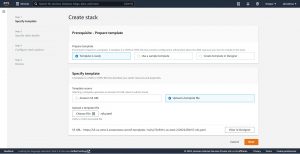
On you AWS web console open CloudFormation and click on Create Stack , In step-1 select Template is ready for prerequisite and choose template source
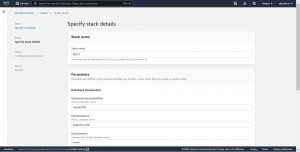
In step-2 give a name to your stack and you can also change the default parameter values here .
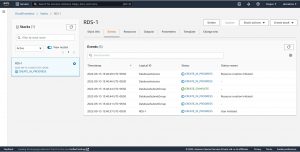
In step-3 configure your stack options like Roll back options, permissions, tags and in step-4 review your stack configuration and click on create to create the resources , you will be redirected to events page where you can see the progress of resources creation.
Connecting to Amazon RDS from a EC2 Instance
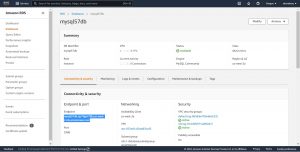
Once the resource is created successfully, go to RDS on your AWS console , and click on the Database Identifier name that you want to connect to, connecting to database on RDS is nothing new from accessing a remote database server it only varies based on the database engine you use.
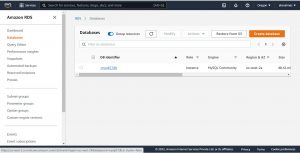
Copy the endpoint from Connectivity and Security and store it somewhere.
on you ec2 instance install MySQL client , you can following command on a Linux server.
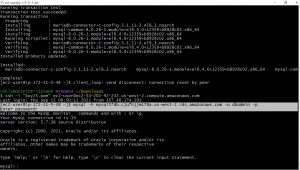
sudo yum install mysql

use the following command to connect to the database, and enter the database password when it prompts for
mysql -h <database endpoint> -u <username> -p
Author Details:
This blog is written Amit Kumar, Director of Engineering at Checkmate Global TeTechnologies. You can please connect with to consult anything about product development, dedicated development team composition infrastructure management and DevOps engineering.
