

Docker compose is a tool using which we can define and run multi-container applications. With docker-compose, we can define configurations using a single YAML file and manage multiple containers using a single command.
In this blog, we will deploy a Django application using docker-compose. In production, a Django application is built with the following components:
- WSGI server – Gunicorn
- Web Server – Nginx
- Database – PostgreSQL
To package a Django application with Docker, Gunicorn, Nginx, and PostgreSQL follow the below steps.
Step1: Create Dockerfile for the Django application
In this blog the directory structure followed is as below.

Go to the directory where Django code is present. Create a file with the name Dockerfile and paste the following code there.
FROM python:3.8-slim-buster
ENV PYTHONBUFFERED=1
RUN pip install --upgrade pip
WORKDIR /app
COPY requirements.txt requirements.txt
RUN pip install -r requirements.txt
COPY . .
CMD ["/bin/bash", "entrypoint.sh"]
Create a file entrypoint.sh and paste the following script there. Replace the WSGI module core.wsgi:application according to your application.
#!/bin/bash

python manage.py makemigrations --no-input
python manage.py migrate --no-input
python3 manage.py collectstatic --no-input

gunicorn core.wsgi:application --bind 0.0.0.0:8000
Step2: Create Dockerfile for Nginx
Go to nginx directory. Create a Dockerfile and paste the following code there.
FROM nginx:1.19.0-alpine

COPY ./default.conf /etc/nginx/conf.d/default.conf
Now create a file default.conf and paste the following code there.
upstream django {
server django_app:8000;
}

server {
     listen 80;

     location / {
          proxy_pass http://django;
          proxy_set_header X-Forwarded-For $proxy_add_x_forwarded_for;
          proxy_set_header Host $host;
          proxy_redirect off;
          }

    location /static/ {
        alias /app/staticfiles/ ;
         }
}
Step3: Create a docker-compose file
Now create a docker-compose.yaml file and paste the following code there.
version: "3.8"
services:
   django_app:
     build: ./djangoapp
     volumes:
       - staticfiles:/app/staticfiles
     ports:
       - 8000:8000
     image: app:django
     depends_on:
      - pgdb
     restart: "on-failure"

   nginx:
     build: ./nginx
     volumes:
       - staticfiles:/app/staticfiles
     ports:
       - 80:80
     image: nginx:django
     depends_on:
       - django_app
     restart: "on-failure"

   pgdb:
     image: postgres:13
     volumes:
       - pg_data:/var/lib/postgresql/data/
     environment:
       - POSTGRES_PASSWORD=${POSTGRES_PASSWORD}
       - POSTGRES_DB=${DB_NAME}
       - POSTGRES_USER=${POSTGRES_USER}
     restart: "on-failure"

volumes:
   staticfiles:
   pg_data:
Next, create a .env file and add the Postgres environment variables to it.
POSTGRES_PASSWORD=postgres_pass
DB_NAME=postgres_db
POSTGRES_USER=postgres_user
Step4: Start the application
Use the following command to build the images and start the containers.
docker compose up --build
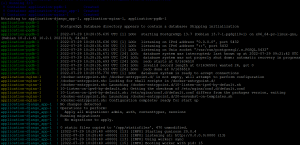
To run the containers in the background use -d flag.
docker compose up -d

Now you can access your application from the browser.
Please contact our technical consultants if you have anything related to cloud infrastructure to be discussed.
